
Merge PDF files into one document
Atlas PDF Reader combines several files into a single PDF, in the order you choose. It happens in the desktop app, on your own computer.
Part of the Pro plan.
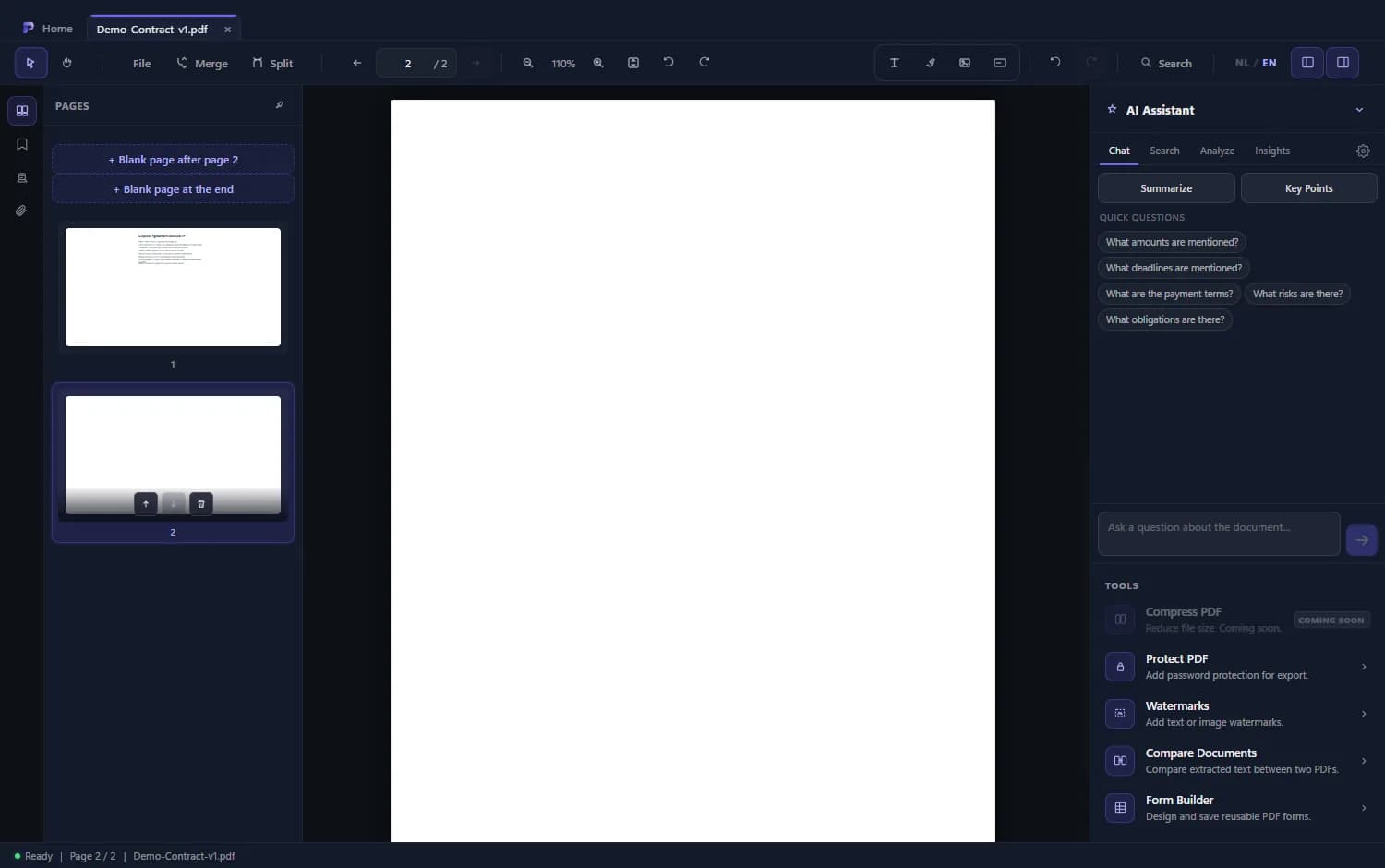
How to merge PDFs
- 1
Open Merge
Click Merge in the toolbar.
- 2
Add the files
Choose files or drag them into the window. Besides PDFs you can add images, and Word, Excel and PowerPoint files when Microsoft Office is installed.
- 3
Set the order
Put the files in the order they should appear in the result.
- 4
Create the file
Choose Create and pick a save location. Atlas opens the Windows save dialog so you decide where the merged PDF goes.
Good to know
On your own computer
Merging happens in the app; your files are not sent to a server for it.
A bundle for a meeting
Agenda, documents and attachments in one file, ready to share or print.
Keep working afterwards
Open the result in Atlas to annotate it, add a watermark or put a password on the export.
Frequently asked questions
Can I still change the order?
Yes. You arrange the files in the order you want before creating the result.
Are my files uploaded?
No, merging happens in the app on your computer.
Do I need Word to add a Word file?
Word, Excel and PowerPoint files need Microsoft Office. PDFs and images do not.