
Edit text in a PDF
A typo or an outdated amount in a PDF does not have to mean a new document. Select the text in Atlas PDF Reader, replace it and export the file.
Available in the free plan.
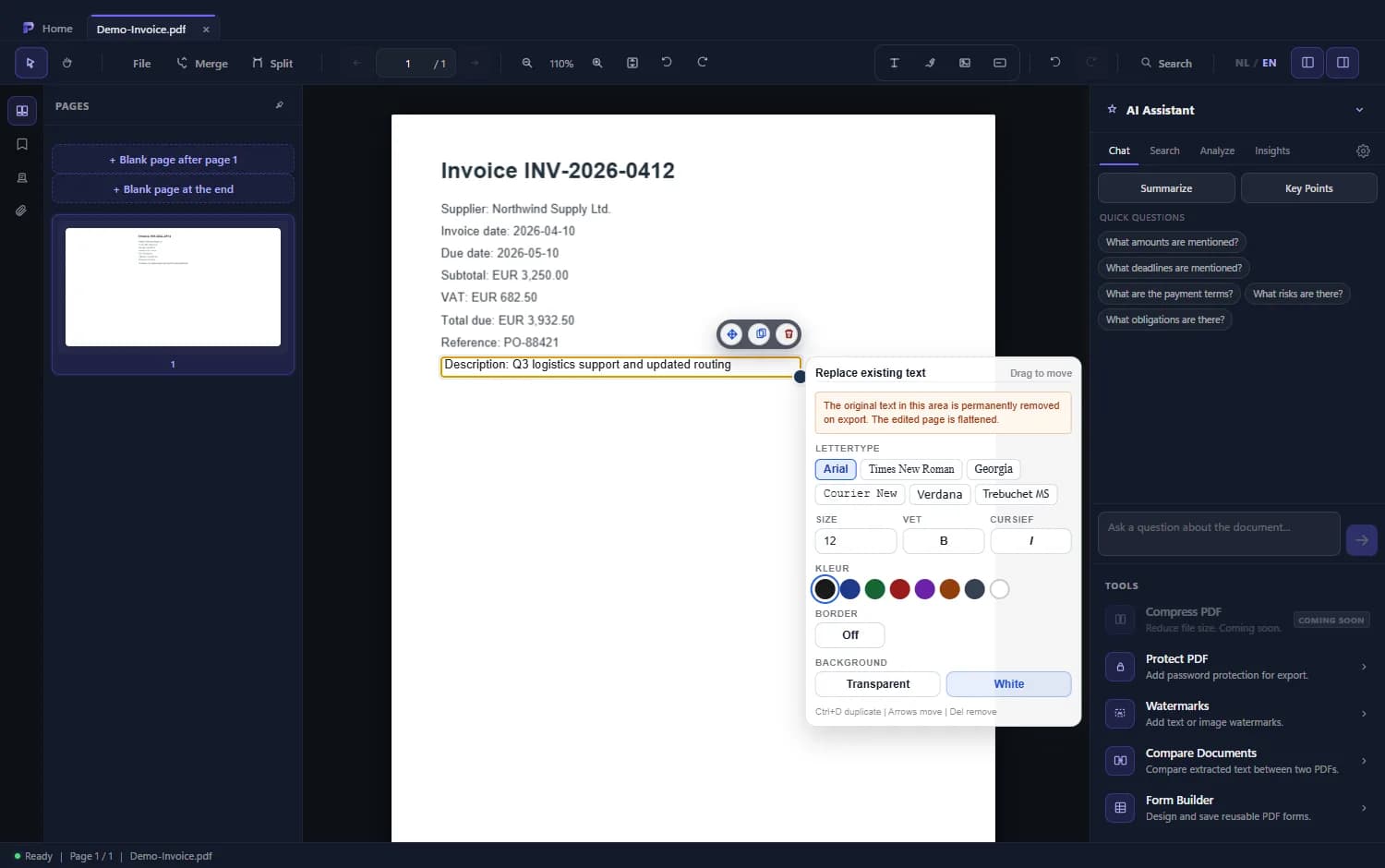
How to edit text
- 1
Select the text
Highlight the line you want to change.
- 2
Choose Edit
In the menu next to your selection choose Edit. A text box with the original text appears in that spot.
- 3
Type the new text
Change the text and, if needed, pick the font, size, colour or background. The new text keeps the font size of the original, at every zoom level.
- 4
Export the final PDF
Choose Export final PDF in the file menu to make the change permanent.
More than replacing text
Add text, stamps and images
Place new text boxes, stamps, images and highlights on any page.
Undo
You can undo a change as long as you have not exported yet.
Scanned pages too
If a page has no real text, run OCR first; then you can edit the recognised text the same way.
Frequently asked questions
Can I edit any PDF?
You can edit text that is real text in the PDF. For scanned pages, run OCR first.
Does the original file change?
Only when you export a final PDF, and then you choose the name and location.
Does the edited text stay selectable?
Not on edited pages: they are flattened to an image on export.