
Split a PDF into separate files
Pull a few pages out of a large document, or cut it into parts. Atlas PDF Reader turns each part into a new file and leaves the original alone.
Part of the Pro plan.
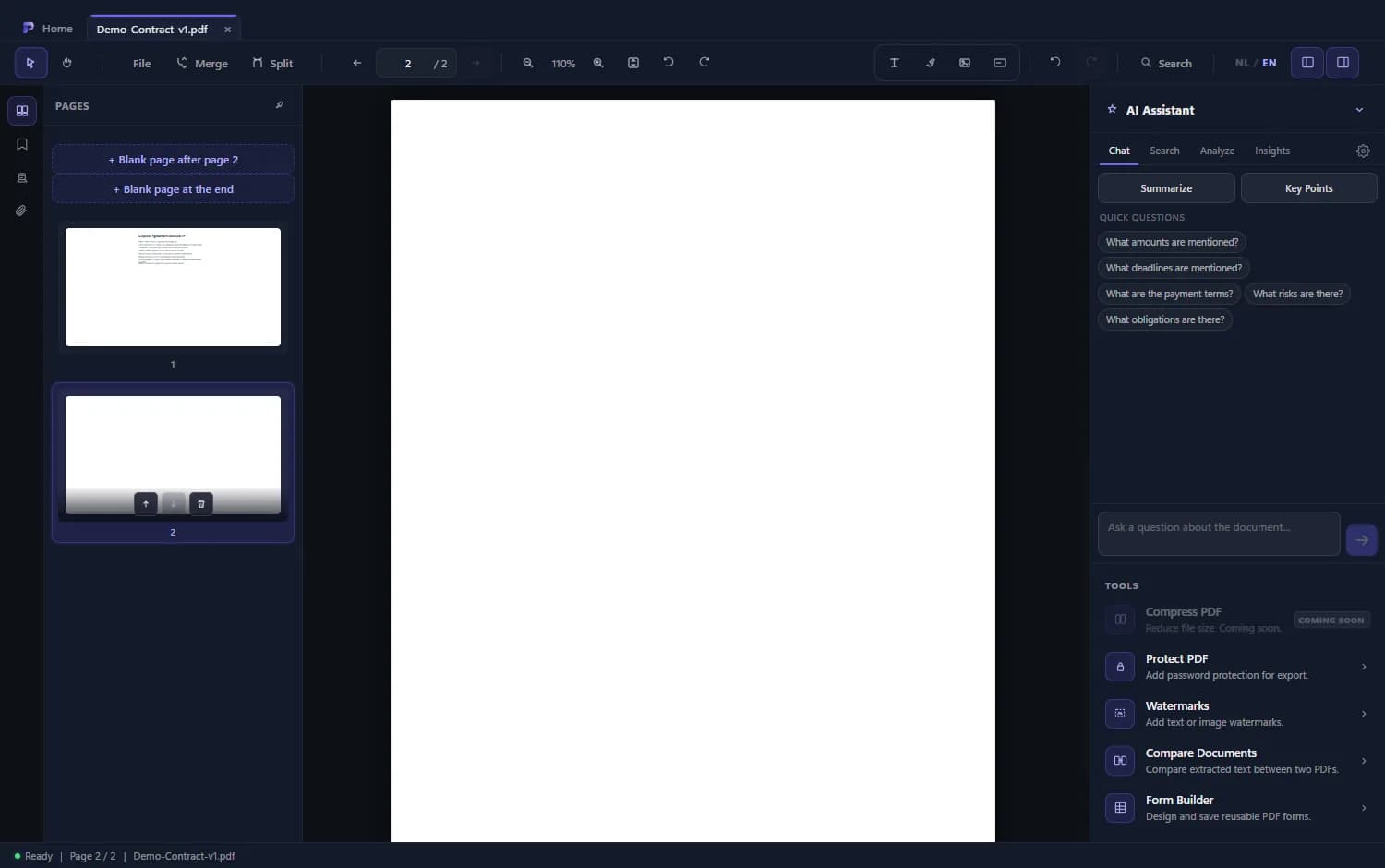
How to split a PDF
- 1
Open Split
Click Split in the toolbar.
- 2
Choose the pages
Enter page ranges, for example 1-3, or choose Per page for one file per page.
- 3
Check the output files
Each output file has a name and a range. You can add or change files before you continue.
- 4
Save the parts
Atlas creates the new PDFs where you choose.
Good to know
By range or by page
One range for a chapter, or every page as its own file.
Leaving pages out
Remove pages from the document and export what is left when you do not need separate parts.
On your own computer
Splitting happens in the app.
Frequently asked questions
Can I take a single page out of a PDF?
Yes. Enter just that page as a range, for example 5.
Does the original file stay unchanged?
Yes. The parts are saved as new files.